Lemo TV – A Modern Way to
Experience TV
Explore the player interface, verify compatible devices, and follow simple step-by-step installation instructions to configure your home streaming experience in minutes.
Simple 5-Minute Setup
Quickly install the application onto your streaming stick or television with guided instructions and verified shortcut codes.
Multi-Device Compatibility
Works across Amazon Fire TV, Android TV, Google TV, Android smartphones, tablets, and personal computers.
HD & 4K Playback
Built for high-definition video feeds with adaptive bitrate streaming for stable, smooth playback across supported formats.
Intuitive TV Interface
Effortlessly browse live schedules with a responsive Electronic Program Guide (EPG), quick category switching, and custom favorites.
Verified Official Methods
Direct access through authorized Downloader numeric codes prevents third-party clones and protects device security.
Direct Support Guidance
Clear pathways to subscription management, troubleshooting instructions, and active assistance through the primary storefront.
Quick Lemo TV Answers
Immediate answers to the most essential setup, device compatibility, and download questions.
What is Lemo TV?
A high-performance streaming player and service interface delivering live TV channels, sports, and on-demand entertainment to modern televisions and mobile devices.
Read platform overview ›How do I install it?
Install the free Downloader app on Firestick or Android TV, enter shortcut code 5789712, and the installer package downloads automatically in seconds.
View setup walkthrough ›What is the Firestick code?
The official numeric shortcut code is 5789712. Type it directly into Downloader to bypass long URLs and download the verified app build.
Copy Downloader code ›Where can I see pricing?
Review current subscription packages, multi-device plans, and instant account access directly on the official store checkout page.
View subscription pricing ›What Is Lemo TV?
Lemo TV is a versatile digital streaming service and media interface designed to deliver live television broadcasts, movies, and on-demand entertainment directly to your television screen or portable devices.
Rather than relying on traditional cable equipment or restrictive hardware rentals, the streaming experience functions through lightweight applications built specifically for Android TV, Firestick, smartphones, and media players. This allows viewers to access crisp digital entertainment with high-definition and 4K playback capabilities wherever a reliable broadband connection is available.
Important Notice: This subdomain (app.lemotv.store) serves as the official setup and installation resource. Account activations, billing, and subscription options are managed exclusively on the main website at lemotv.store.
Whether you are configuring your first streaming stick or connecting a smart TV, this guide provides verified installation steps, the official Firestick downloader code, and direct access to subscription packages.
View Subscription Options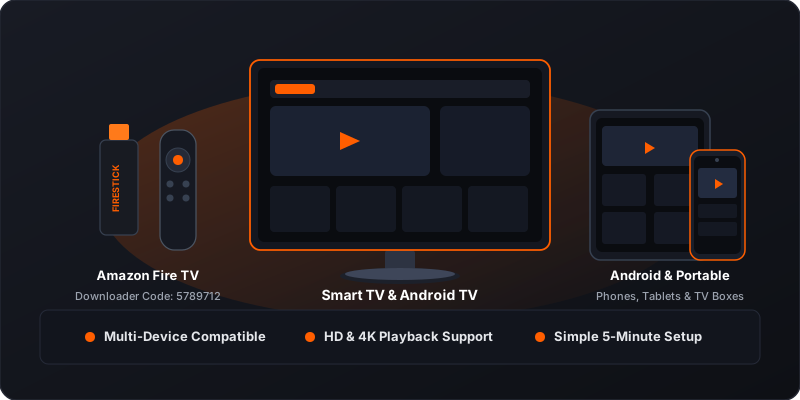
Application Features & Interface
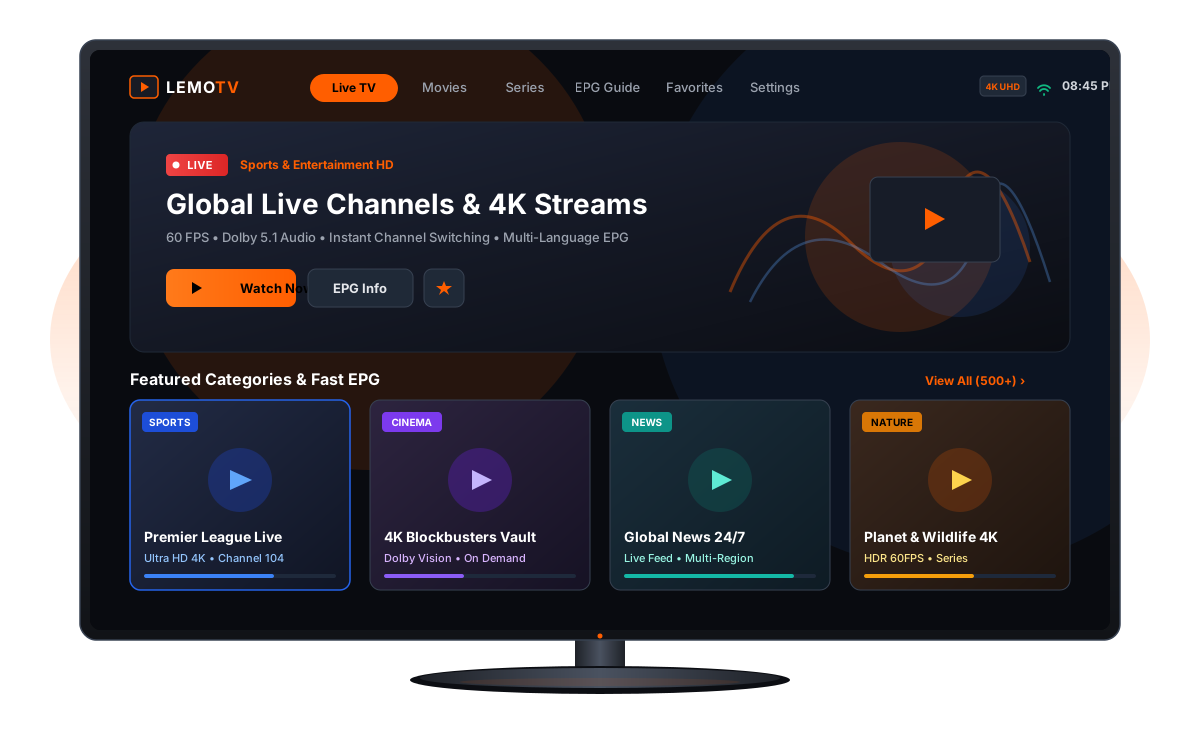
The dedicated app serves as your central player interface, bringing live broadcasts and on-demand entertainment together in a unified, cinema-inspired layout. Designed for seamless remote-control use as well as touchscreens, the software emphasizes speed, stability, and ease of navigation.
-
Interactive Program Guide (EPG): Preview current schedules and upcoming time slots across channels with timeline clarity.
-
Favorites & Custom Lists: Bookmark your preferred sports, news, and movie streams for instant single-click access.
-
Adaptive High-Speed Player: Built-in video engine automatically scales quality based on connection speed with multi-audio support.
-
Optimized Remote Control: Fluid D-pad navigation built specifically for Fire TV and Android TV remote controls.
Subscribers log in directly using verified account credentials issued upon plan selection on the official storefront.
View Setup InstructionsCompatible Devices & Platforms
The platform is compatible across a wide spectrum of home entertainment systems, streaming sticks, and portable devices.
Amazon Firestick
Best for TV viewing. Takes under 5 minutes using Downloader shortcut code 5789712.
Firestick StepsAndroid TV & Box
Native Android experience on Sony, TCL, Hisense, and Nvidia Shield TV.
Android TV InfoAndroid Phone / Tablet
Touch-optimized mobile entertainment for smartphones running Android 7.0+.
APK GuidanceOther Smart TVs
Connect LG, Samsung, or Apple TV using supported player apps or an HDMI stick.
Compatibility FAQAmazon Firestick & Fire TV
Optimized for Fire TV Stick 4K, 4K Max, Lite, and Fire TV Cube. Simple sideloading installation using the Downloader app and code 5789712.
Android TV & Google TV
Compatible with Sony, TCL, Philips, Hisense, Nvidia Shield TV, and Chromecast with Google TV. Quick installation via Downloader or USB installer.
Android Phones & Tablets
Enjoy smooth mobile viewing on Samsung, Google Pixel, Xiaomi, and other devices running Android 7.0 or higher with full touch navigation.
Smart TVs (LG webOS / Samsung Tizen)
For televisions running proprietary operating systems, access is supported through compatible third-party player applications or an external streaming stick.
Windows PC & macOS
Stream on laptop or desktop screens using verified desktop media software (such as VLC or dedicated media player apps) or web-based portals.
Apple iPhone, iPad & Apple TV
Stream on iOS devices by configuring your account credentials inside established App Store players such as IPTV Smarters Pro or GSE Smart IPTV.
| Hardware Platform | Operating System | Recommended Method | Shortcut / Code | Installation Guide |
|---|---|---|---|---|
| Amazon Firestick & Fire TV | Fire OS 6.0+ | Downloader App Sideload | 5789712 | View Steps › |
| Android TV & Google TV | Android 8.0+ | Downloader / Direct APK | 5789712 | Get Details › |
| Android Phones & Tablets | Android 7.0+ | Direct APK Sideload | Official APK | APK Guidance › |
| Smart TVs (LG webOS / Samsung) | Tizen / webOS | Compatible Player / HDMI Stick | Store Apps | Read FAQ › |
| Windows PC & macOS | Windows 10+ / macOS 11+ | Desktop Player Software / Web | Media Player | Setup Notes › |
| Apple iOS & Apple TV | iOS 13+ / tvOS 14+ | App Store Player Application | Store Player | Read FAQ › |
How to Install on Firestick
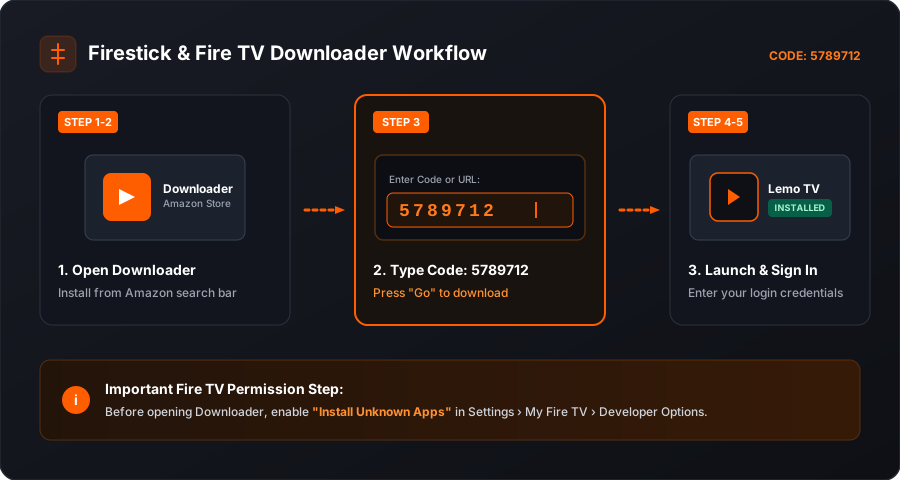
Follow this clear 5-step walkthrough to download and set up the application on your Amazon Fire TV Stick in under five minutes.
Before You Start Checklist
- Device Connected: Amazon Firestick or Fire TV plugged into HDMI and connected to Wi-Fi.
- Free Storage: At least 250 MB free internal space available for installation and app cache.
- Stable Internet: Minimum 15–25 Mbps connection speed recommended for buffer-free HD streaming.
- Account Credentials: Active subscription username and password from the official store.
Direct Firestick Shortcut
Enter this official 7-digit code into the Downloader app URL field on your Firestick. The download starts automatically without typing long web addresses.
Install Downloader App
From your Fire TV Home screen, go to Find > Search, type "Downloader", select the orange Downloader icon from the results, and click Download / Get.
Allow Unknown Apps
Go to Fire TV Settings > My Fire TV > Developer Options. Select Install Unknown Apps and toggle Downloader to ON to permit sideloading.
Enter Code 5789712
Open the Downloader app, select the URL box on the Home tab, enter the official code 5789712, and click Go. The package will download immediately.
Install the Application
When the file finishes downloading, an installation window will appear. Click Install in the bottom right corner, then select Done.
Sign In & Enjoy
Launch the installed application from your Apps library, enter your active subscription credentials, and start streaming your favorite channels.
What to Do After Installation
Complete these 3 simple post-setup steps to ensure maximum streaming performance.
1. Log In to Your Account
Launch the newly installed Lemo TV app from your Fire TV App Library and enter your active subscription credentials.
2. Let the EPG Sync
On initial launch, allow the Electronic Program Guide 1 to 2 minutes to sync channel schedules and categories completely.
3. Delete APK File (Optional)
Return to Downloader and select "Delete" on the downloaded APK prompt to save Firestick storage space.
Download & Installation Options
Understand the verified ways to obtain the software safely across TV operating systems and mobile hardware.
Before Downloading Lemo TV
Review these three important requirements before starting your download to ensure seamless installation and playback.
Storage Requirement
Ensure your device has at least 250 MB of available storage space for the installer package and buffer cache.
Connection Speed
A stable broadband connection of 15–25 Mbps is recommended for smooth, buffer-free HD and 4K streaming.
Authentic Source Only
Avoid untrusted third-party sites or modified APKs. Always use code 5789712 or verified official channels for security.
Downloader Shortcut for Fire TV & Android TV
The fastest and most secure method to install the software on big screens is through the Downloader utility. By typing numeric code 5789712 directly into the search field, your device downloads the installer securely without navigating third-party websites or ad popups.
Android APK Sideloading
If you plan to use the app on an Android phone, tablet, or custom TV box where the Downloader tool is unavailable, you can install the APK package directly. Always ensure packages are sourced from verified locations to protect your hardware from modified builds.
Security Notice: Avoid third-party blogs claiming to offer "unlocked" or "modded" versions. Authentic service access requires verified credentials from the official provider.
Getting Started: 4-Step Setup
A clear 4-stage path from choosing your hardware to enjoying live digital entertainment.
Choose Device
Select your preferred streaming hardware—such as an Amazon Firestick, Android TV box, or Android mobile phone.
Install App
Use Downloader code 5789712 on Firestick or install the appropriate APK on your Android device.
Subscribe & Login
Select a suitable plan on the official store to receive your secure account credentials, then enter them into the app.
Start Streaming
Browse live channels with the EPG, bookmark favorite content, and enjoy high-definition playback seamlessly.
Ready to Get Started?
Choose the subscription plan that fits your household. Subscription options, instant account delivery, and secure checkout are managed exclusively through the official store.
Secure checkout via official storefront • Multi-device access • Instant automated activation
Lemo TV Common Installation Problems
Quick, actionable diagnostic steps to resolve the most common download and installation issues on Fire TV and Android.
Downloader Code Timeout or Network Error
Occurs when the Downloader app cannot connect to the package host, often caused by temporary Wi-Fi signal drop or DNS lag.
"App Not Installed" Error Message
Typically triggered when available storage is below the minimum threshold or an incomplete previous install exists.
App Closes Immediately After Opening
Caused by corrupted temporary application cache or pending operating system firmware updates on Fire TV.
App Won't Open or Shows Black Screen
Usually indicates video decoder initialization lag or background RAM exhaustion from multiple open background applications.
Firestick Storage Full Warning
Occurs when old APK installation files or heavy streaming app caches accumulate in internal flash memory.
App Prompts That It Needs an Update
A newer version of the player has been deployed with improved performance, stability, and EPG fixes.
Frequently Asked Questions
Concise, factual answers regarding the application, device compatibility, downloader shortcuts, and account activation.
What does the application do?
The app provides a media interface that connects with your subscription to stream live television channels, on-demand movies, and series with an interactive Electronic Program Guide (EPG).
Which devices are compatible?
It runs smoothly on Amazon Firestick & Fire TV, Android TV & Google TV (Nvidia Shield, Sony, TCL, Chromecast), Android smartphones and tablets, as well as Windows PCs, Macs, and Smart TVs via compatible player tools.
How do I install the app on an Amazon Firestick?
Installation takes less than five minutes:
- Install the free Downloader application from the Amazon Appstore.
- Enable Install Unknown Apps for Downloader in Fire TV Developer Options.
- Open Downloader, enter shortcut code 5789712, and press Go.
- Click Install when prompted.
- Launch the app and enter your service login details.
What is the official Downloader code?
The official shortcut code is 5789712. When typed into the URL/Code field of the Downloader application on Fire TV or Android TV devices, it immediately downloads the verified app installer without typing long URLs.
Where can I view subscription plans and pricing?
Official plans and subscription pricing can be reviewed directly on the storefront at lemotv.store/product/lemo-tv-subscription/.
How do I get the APK file for Android mobile?
For Android smartphones and tablets where Downloader is not available, you can obtain the APK installer directly through verified channels or connect using supported third-party player applications.
Do I need an active subscription to start streaming?
Yes. While downloading and installing the software application is free, streaming content requires an active account to authenticate and load channels.
Where can I get technical or setup help?
If you encounter any difficulty while enabling developer options or completing setup, visit the help section on the main website at lemotv.store or contact our team directly via WhatsApp at wa.link/6h0xlr.
What should I do if Downloader code 5789712 times out or fails?
If code 5789712 times out, check your Firestick Wi-Fi connection under Settings > Network. Restart your router or reconnect Wi-Fi, ensure at least 250 MB free storage, then relaunch Downloader and re-enter 5789712. Detailed fixes for other issues are outlined in our Troubleshooting Guide.
Help & Support Resources
Need assistance setting up your device or managing your account? Here is where to find official guidance.
Installation Guidance
Consult the step-by-step Firestick instructions above or refer to detailed device tutorials on the primary domain for troubleshooting setup steps.
View Setup StepsSubscription & Orders
All subscription activations, plan renewals, and order status inquiries are securely processed on the main store.
Manage SubscriptionOfficial Helpdesk
Have technical questions or need one-on-one configuration help? Contact our support team directly via WhatsApp for quick assistance.
Contact Support